k-pop y2k disco birthday invitation template — personalize K-Pop Y2K Birthday Bash Invitation | Neon Pink & Purple Disco Theme with K-Pop Idols | Editable Printable Party Template using the editable Canva template linked in your purchase PDF. This digital invitation is made for a birthday celebration. Update the details to suit your event, review your design and choose the export format that works for you.
Give guests the information they need in a design that matches your occasion. You can work through the invitation at your own pace, adjust supported elements in Canva and prepare the finished file for printing or sending digitally. The downloadable purchase guide explains how to access your template.
Design details
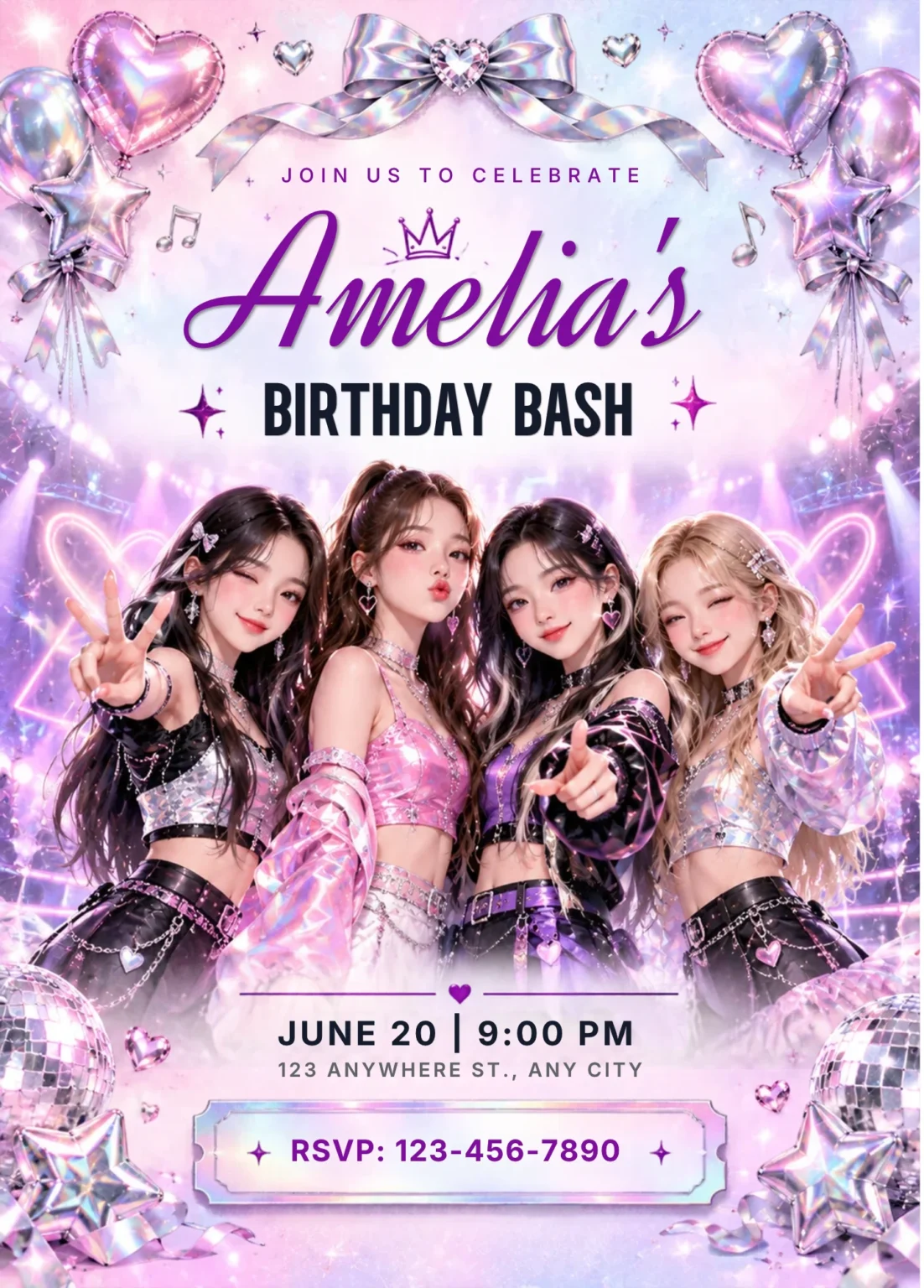
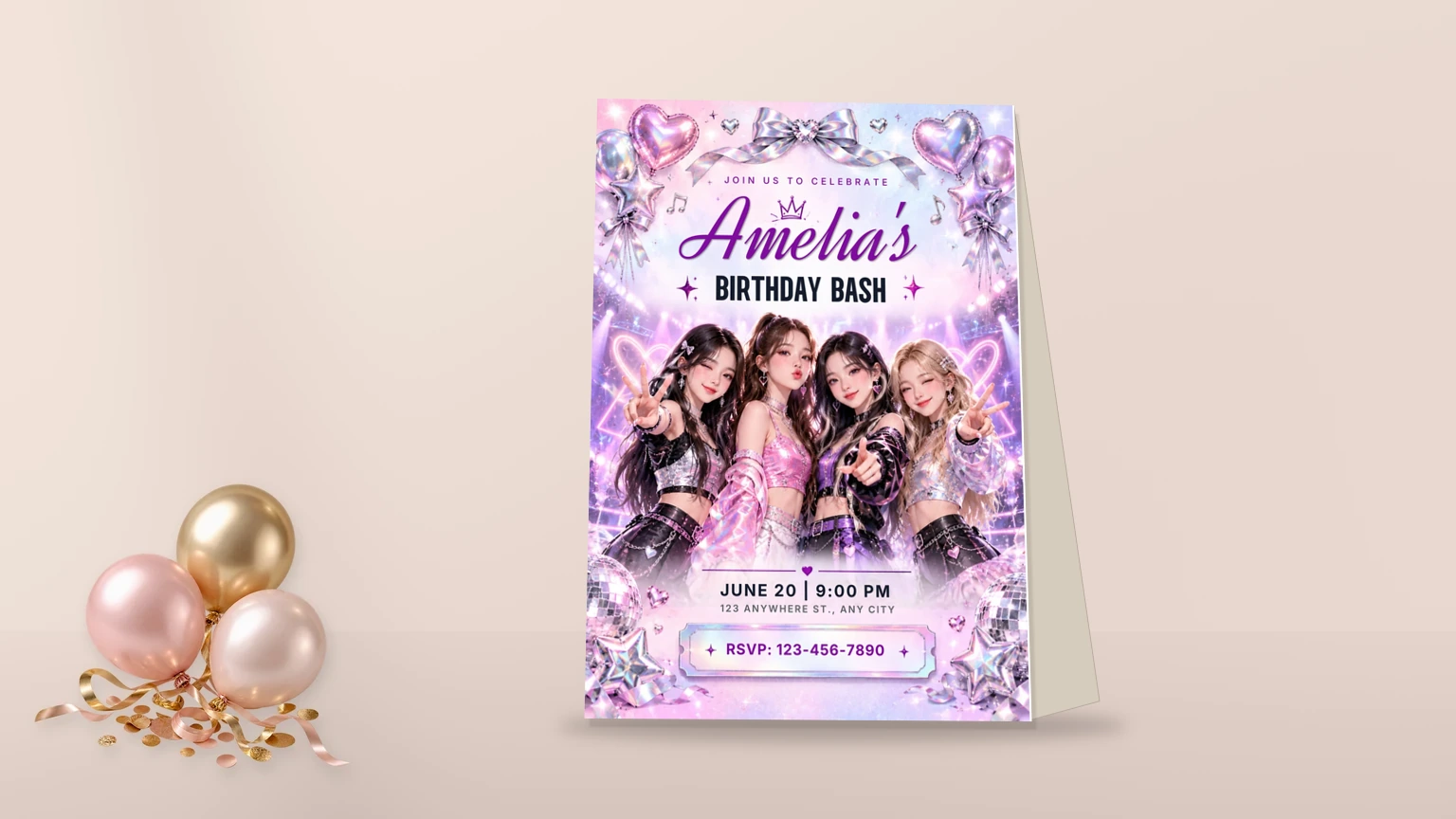
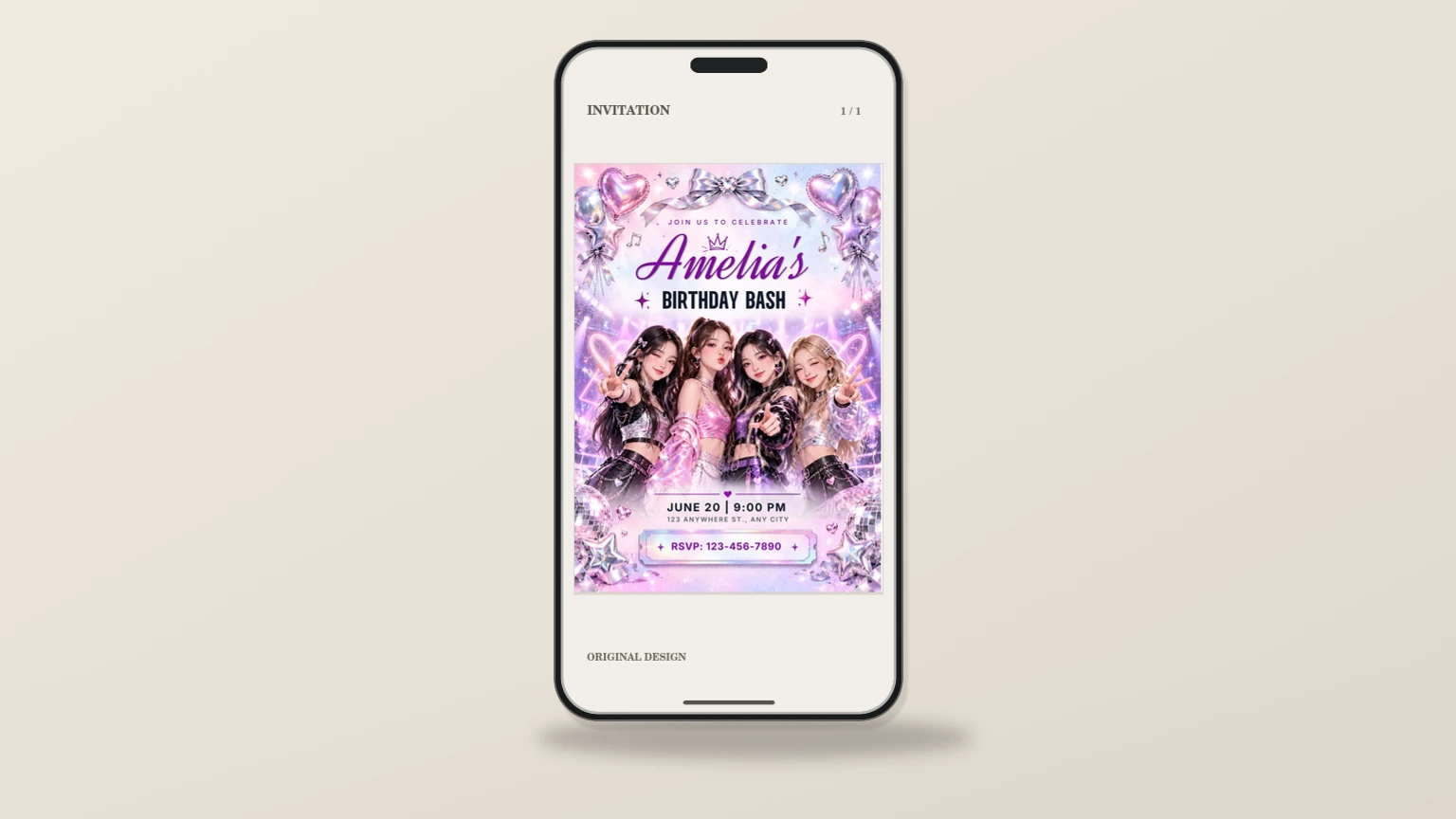
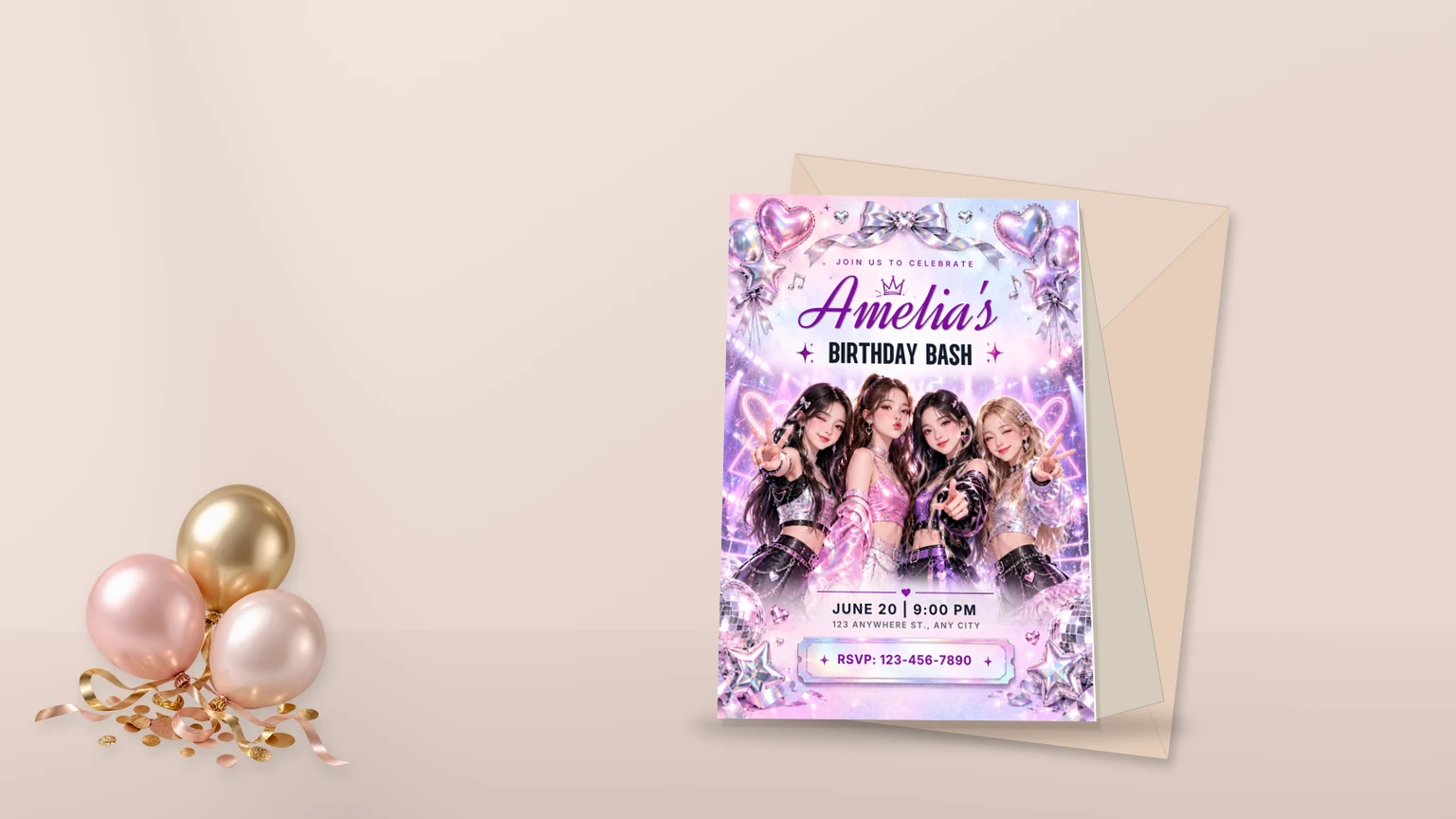
The invitation features a pastel pink and lavender gradient background with neon pink and purple accents and silver holographic details. Visible motifs include heart and star-shaped foil balloons, disco balls, a large iridescent bow with a heart gem at the top, neon heart light outlines, and a central photo of four young women in sparkly Y2K-style crop tops and skirts posing on a stage. Typography includes small uppercase sans-serif for “JOIN US TO CELEBRATE,” large purple cursive script for “Amelia’s” with a small crown icon, and bold black sans-serif for “BIRTHDAY BASH,” with date, address, and RSVP information arranged in a vertical composition below the photo.
What is included with this k-pop y2k disco birthday invitation template
- A digital PDF access guide with a clickable link to your invitation template in Canva.
- An editable Canva template you can copy into your Canva account and personalize.
- Instructions for opening the template, making changes and exporting the finished invitation.
This is a downloadable product, not a printed card or a physical shipment. The preview images show the design in stationery presentation scenes; mockup props, envelopes and decorative backgrounds are not delivered as separate items.
How to customize your birthday invitation
- Complete your purchase and access the PDF guide from your WooCommerce order or download area.
- Open the PDF and select the Canva template button. Follow Canva’s on-screen option to make an editable copy.
- Sign in to your own Canva account if prompted. Keep your original purchased PDF for future access.
- Replace placeholder wording with the correct guest of honor, names, date, venue, schedule and RSVP details for your celebration.
- Review spacing and supported visual elements before exporting your final design.
For best results, check every line of event information carefully before sending or printing. Use a final proof to catch spelling issues, contact details, time zones and location mistakes. If someone else is printing for you, ask them about the preferred file format, trim area and bleed settings before downloading your design.
Printing and digital sharing
When your edits are complete, use Canva’s available download and sharing tools to export a suitable file. For a print order, confirm your printer’s specifications first; paper stock, finish and trimming are determined by your chosen print provider. For digital delivery, preview the invitation on a phone as well as a desktop so text remains readable at smaller screen sizes.
Your chosen print size and orientation should follow the actual Canva design and the requirements of your printer. Digital colors may look different between screens, home printers and professional print shops. We recommend ordering a test print before producing a large batch.
Helpful information before purchasing
- Delivery: A PDF guide containing the access link; you do not receive a printed invitation.
- Editing: Canva is used to personalize supported text and design elements. Editability depends on the specific template.
- Account: You need access to Canva. Some Canva Pro elements or export options may need an eligible Canva plan or additional payment.
- Sharing: Download the finished invitation from Canva using the format appropriate for your plans. Please do not redistribute the purchased template access link.
Frequently asked questions
How do I receive my editable invitation?
After a successful order, download the supplied PDF access guide using the link provided by the store. The PDF has a clickable Canva Template Link and short instructions.
Can I edit the invitation myself?
You can customize the supported parts of the Canva template in your own Canva account. Check that Canva offers the template-copy flow in your browser before you rely on the design for an upcoming event.
Can I print my final invitation?
Yes, you can export the edited file from Canva using the formats available to your account, then print it yourself or send it to a print provider. Confirm any printer-specific size and bleed requirements first.
Are the mockup props included?
No. Gallery mockup scenes are product presentation images. The downloadable item is the PDF guide providing access to the Canva invitation template.
If you need help getting started, visit Canva Help for guidance on using the editor. Please check the template preview, included format and checkout details before purchasing.
Explore more editable invitation templates in our shop for other occasions.